How to Request Access to a Facebook Ad Account
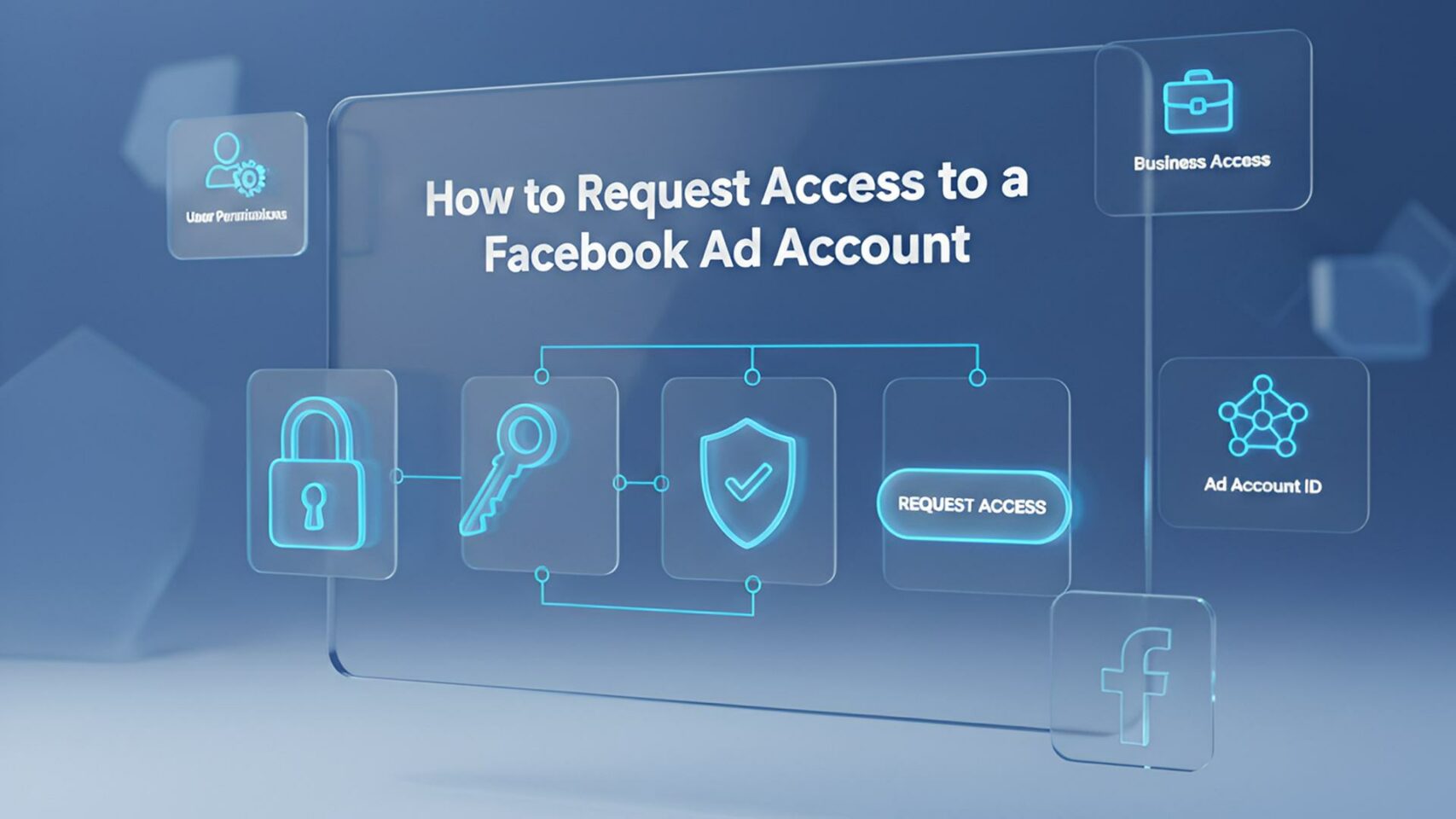
Requesting access to a client’s Facebook ad account is simple once the setup is right, but most agencies still waste time on confusing walkthroughs and login problems.
If your own Business Manager is not yet eligible for higher‑trust accounts, you might also hear about options to rent Facebook ad agency account access from specialized providers, but the steps in this guide focus on doing it through your own verified business setup.
What “Requesting Access” Actually Means
Requesting access means you use your own Meta Business Manager to work inside a client’s existing ad account without owning it or logging in as them.
The client keeps ownership, billing, and full control, while you gain permissions (analyst, advertiser, or admin) to create and manage campaigns on their behalf.
Access vs. Ownership: Why It Matters
If you create ad accounts inside your own Business Manager, you own those assets and may need to transfer them later, which can be messy.




Best practice in 2025 is for clients to own their Pages, pixels, and ad accounts, and for agencies to request access to those assets through Business Manager or partner access.
When You Need an Ad Account Access
You need ad account access when you plan to: audit existing campaigns, take over ongoing ads, or launch new campaigns that must bill to the client’s payment method.
You do not need access if you only advise at a high level and never touch Ads Manager, but that’s rare once you handle execution and optimization.
Prerequisites Before You Request Access
If any of the basics are missing, the “Request access to an ad account” option may not appear or will fail.
Use this short checklist before you start asking for access to a Facebook ad account.
What You Need on Your Side
You need a personal Facebook profile, an active Meta Business Manager or Business Portfolio, and at least one business Page connected to it.
In Meta Business Suite, you must be an admin of your business portfolio to request access to another business’s ad account.
What Your Client Needs to Have Ready
Your client must have a Business Manager or Business Portfolio with their ad account already created and correctly added there.
They also need to know either their ad account ID (for direct access requests) or their Business ID / Business Portfolio ID (for partner access).
Method 1: Request Access to a Facebook Ad Account via Meta Business Suite
This is the classic “Request access to an ad account” flow where you use the client’s ad account ID.
It works well for smaller setups where you only need one or two assets, and you already have the ad account ID from the client.
Step 1: Open Business Settings in the Right Portfolio
Go to business.facebook.com, open Meta Business Suite, and confirm you’re in the correct Business Portfolio at the top.
Then click “Settings” (the gear icon) to open your business settings area.
Step 2: Go to Accounts → Ad Accounts
In the left‑hand menu, click “Accounts,” then select “Ad accounts” to see any existing ad accounts tied to your business.
Here you’ll also see the blue “Add” or “Add ad accounts” button that starts the request flow.
Step 3: Choose “Request Access to an Ad Account”
Click the blue Add button and choose “Request access to an ad account” or “Request to share an ad account,” depending on your interface.
Meta may show three options: Add an ad account, Request access to an ad account, or Create a new ad account—be sure to pick the request option.
Step 4: Enter the Client’s Ad Account ID
Ask your client to send you their ad account ID, which they can find in Ads Manager near the top of the screen or in their Business settings.
Paste this ID into the request form and click “Next” to move to role selection.
Step 5: Select Your Ad Account Role
Meta offers several roles when you request access to a Facebook ad account:
Ad account analyst: view-only reporting.
Ad account advertiser: can create and edit campaigns, but cannot manage people or billing.
Ad account admin: can edit campaigns, manage people, and adjust billing and settings.
Most agencies start with advertiser access, then upgrade to admin if they also handle billing or user management.
Step 6: Send the Request and Inform the Client
Once you confirm your role, Meta sends a notification to the ad account admin to approve or decline your request.
Send your client a short message explaining that they should look under their Business Manager notifications or “Requests” tab and click Approve.
Method 2: Use Partner Access for Agencies (Recommended)
Partner access is built for agencies and larger teams that need structured, ongoing access to multiple assets from the same client.
Instead of granting permissions to a single person, the client grants access to your entire business, and you manage your own team internally.
What Partner Access Is and Why You Should Use It
In Meta Business Suite, a “partner” is another business (like your agency) that gets assigned access to assets such as Pages, ad accounts, and pixels.
Partner access lets you add or remove your staff from the client’s assets without asking the client to update each user manually.
Step 1: Go to Partners in Your Business Settings
In Business Settings, scroll to the “Users” section in the left sidebar and click “Partners.”
Confirm you’re in the correct Business Portfolio so the request ties back to the right agency entity.
Step 2: “Ask a Partner to Share Their Assets”
Click the Add button and select “Ask a partner to share their assets.”
A pop-up will open asking for partner details and the client’s Business ID or Business Portfolio ID.
Step 3: Enter the Client’s Business ID and Select Assets
Ask your client for their Business ID, which they can find in Business Settings under Business Info.
Enter the Business ID, then choose which assets you’re requesting: ad accounts, Pages, and potentially pixels or catalogs, depending on how much you manage.
Step 4: Set Permissions for Each Asset
For the ad account, choose the level of control you need (e.g., manage campaigns, view performance, manage billing).
For Pages, pick access that matches your task, such as publishing content, managing messages, or viewing insights.
Step 5: How Your Client Approves Partner Access
Your client will see a partner request in their own Business Settings under “Partners” or under the “Requests” section.
They review your business details, choose which assets to share, confirm your requested permissions, and then approve the connection.
How to Guide Your Clients Through Approval (Copy-Paste Instructions)
Most delays happen because clients are unsure where to click or which notification to trust.
A clear, simple set of instructions makes it easier for them to approve your request quickly.
Sample Email for Standard Ad Account Access Requests
You can send this to your client after you request access to their Facebook ad account:
“You’ll see a notification in your Meta Business Manager asking you to approve access to your ad account.
Log in to business.facebook.com and open your Business Manager.
Click the bell icon (notifications) or go to Settings → Requests.
Look for the request from [Agency Name] and click ‘Respond to request’.
Confirm the requested role (usually ‘Advertiser’) and click ‘Approve’.”
This keeps the process focused and avoids having to walk each client through Meta’s interface on a shared screen.
Sample Email for Partner Access Approvals
For partner access, send a variant:
“We’ve requested partner access to your assets in Meta Business Suite.
Go to business.facebook.com and click Settings.
In the left menu, click ‘Partners’ under ‘Users’.
Open the ‘Requests’ or ‘Received’ tab and look for our agency.
Review the ad accounts and Pages listed, confirm the permissions, then click ‘Approve’.”
Clients can keep controlling which assets they share while you get the flexibility of a proper agency connection.
Choosing the Right Ad Account Role and Staying Secure
Picking the right access level helps you work efficiently without putting the client’s account at unnecessary risk.
This also keeps Meta’s permission model clean, so audits and handovers stay easy.
Role Options When You Request Access to a Facebook Ad Account
When you send a request, you normally choose between:
Analyst (or equivalent read‑only role): access to reports and performance data, but cannot change campaigns.
Advertiser: can create and edit campaigns, audiences, and creatives, but cannot add users or manage billing.
Admin: full control over campaigns, users, and billing.
For one‑off audits or consulting, analyst access is enough; for ongoing campaign management, advertiser is usually the baseline.
Why You Should Never Ask for Passwords
Meta’s own help documents and agency best practices are clear: do not log in as the client or share passwords.
Using Business Manager roles and partner access preserves security, protects both parties, and keeps a proper action history inside the ad account.
Troubleshooting Common Problems When Requesting Access
Even when you follow every step correctly, you may hit errors or find that certain options are missing.
Most issues come down to missing business setups, restrictions, or using the wrong IDs.
You Don’t See the “Request Access to an Ad Account” Option
If the request option is missing, confirm that you’re an admin in your own Business Manager and that a business Page is attached.
If your business is not fully set up, Meta may limit what you can do until business verification or asset configuration is complete.
Error: You Don’t Have Permission to Request This Asset
If you see a permissions error, you may be using the wrong Business Portfolio or a personal ad account that cannot be shared with partners.
Ask the client to confirm that their ad account is in a business portfolio and is not restricted under Account Quality.
The Ad Account Is Disabled or Restricted
When an ad account is disabled or has policy strikes, you may not be able to request access until the issue is resolved.
In this situation, help the client review Account Quality and, if necessary, submit an appeal or shift campaigns to a compliant ad account.
Streamlining Client Onboarding for Fast Access
Once you know the official Meta flows, the next step is to make this process fast and predictable in your agency.
A repeatable system saves time, avoids miscommunication, and reduces the chance of missed approvals or broken campaigns.
Standardize Your Agency Onboarding Checklist
Create an internal checklist that includes: collect the client’s Business ID and ad account ID, decide on the method (direct vs partner), send the correct request, then send the matching client email.
Keep those templates in your CRM or project management tool so every new client goes through the same clean process.
Combine Ad Account Access With Broader Growth Strategy
Access is just the starting point; to make the most of a client’s budget, combine clean account access with a broader plan for content, targeting, and funnel tracking.
If the client wants more consistent reach beyond paid campaigns, mention how social media growth services can boost their organic visibility and social proof alongside their ads.
Here, a natural recommendation is a dedicated Facebook or multi‑platform social media growth services page from Socialplug.io, which helps clients grow followers and engagement that support better ad performance.
Helpful Tools and Services That Support Stable Ad Accounts
Reliable access is one piece of running profitable campaigns; infrastructure and multi‑account management also matter, especially for busy agencies.
You can reference specialized services where they genuinely solve problems this guide uncovers.
When You Inherit Messy or Banned Ad Accounts
Sometimes you request access to a Facebook ad account and discover years of poor structure, missing Business Manager setups, or even prior bans.
In those cases, specialized Facebook ad account services from a provider like Uproas.io (for compliant Business Managers, ad accounts, and unban support) can help stabilize the foundation before you scale campaigns.
Managing Multiple Accounts and Regions Safely
Agencies running many clients across countries often test creatives and offers from different locations and devices.
To support this without triggering security flags, you may combine proper Business Manager access with proxy services for managing multiple ad accounts and geo-testing campaigns, such as a Floxy.io page focused on mobile or residential proxies.
Growing Beyond Paid Traffic With SEO Authority
While this article focuses on how to request access to a Facebook ad account, long-term acquisition also depends on organic search visibility and trust.
For brands that rely heavily on ads today but want to build sustainable traffic, a link-building marketplace like a Linkscope can help them acquire vetted backlinks and improve rankings alongside their paid campaigns.